
Utoljára frissítve:
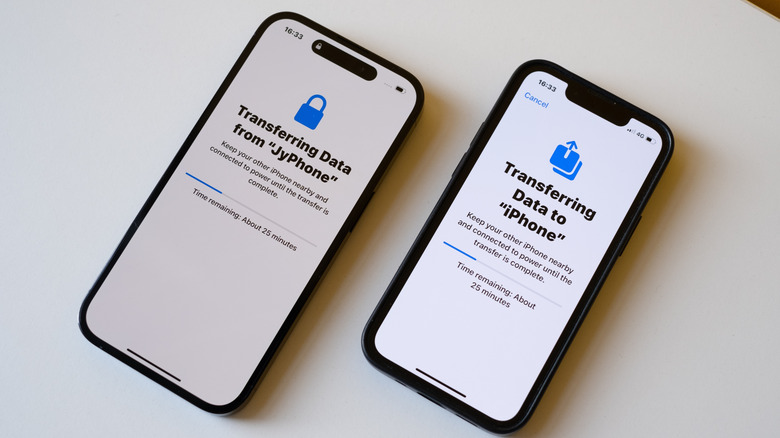
Az iPhone-adatátvitel gyakran az első dolog, ami eszedbe jut, amikor új készülékre váltasz. A névjegyek, fotók, üzenetek és appbeállítások átvitele az elmúlt néhány évben jóval egyszerűbbé vált az Apple Quick Start funkciójának és más átviteli megoldásoknak köszönhetően.
Akár a legújabb iPhone-modellre váltasz, akár a régi telefonodat adod oda egy családtagnak, rengeteg bosszúságtól kímélhet meg, ha tudod, hogyan viheted át gördülékenyen az adatokat egy új iPhone-ra. Az alábbiakban lépésről lépésre útmutatót találsz az Apple beépített eszközeinek használatához, gyakorlati hibaelhárítási tanácsokat és tippeket minden helyzetre — még akkor is, ha a régi készüléked már nincs meg.
Miért fontos az iPhone-adatátvitel?
Az iPhone-frissítés izgalmas, de senki sem akar mindent elölről kezdeni és elveszíteni évek fotóit, üzeneteit vagy appadatait. Régebben az információk átvitele azt jelentette, hogy csatlakoztatni kellett a telefont egy számítógéphez, remélni, hogy a mentés elég friss, és néha szembesülni azzal, hogy fontos adatok mégsem kerültek át. Emiatt sok felhasználónak az új iPhone-ra váltás komoly fejfájást okozott.
Az Apple adatátviteli technológiájának fejlesztései ma már szinte teljes digitális költöztetést tesznek lehetővé. Az iPhone-adatokat vezeték nélkül is átteheted, visszaállíthatod iCloud-mentésből, vagy akár kábelt is használhatsz a közvetlen, gyors kapcsolathoz. Ezek a lehetőségek egyszerűvé teszik az átállást, akár gyakorlott techfelhasználó vagy, akár most használsz először iPhone-t.
A világ több mint 1,5 milliárd aktív iPhone-felhasználójával és az évente több millió frissítéssel az iPhone-adatátvitel hatékonysága nem csupán kényelmi kérdés — hanem szükségszerűség ahhoz, hogy az adataid megmaradjanak.
Hogyan használd a Quick Startot iPhone-adatátvitelhez?
A Quick Start az Apple válasza az új iPhone beállításának régi, körülményes módszereire. Vezeték nélkül átmásolja az összes fontos adatodat — névjegyeket, fotókat, üzeneteket, appbeállításokat és még az eszközpreferenciákat is — a készülékek között, a legtöbb felhasználónál gyakran 30 percen belül.
- Kapcsold be az új iPhone-t, és helyezd a régi készülék közelébe.
- A régi iPhone megjelenít egy felszólítást az új beállítására. Erősítsd meg az Apple ID-det, és kövesd a képernyőn megjelenő lépéseket.
- Az új iPhone-on megjelenik egy animáció. A régi iPhone kamerájával olvasd be, és párosítsd a két készüléket.
- Írd be a jelenlegi jelkódodat, majd állítsd be a Face ID-t vagy a Touch ID-t az utasítások szerint.
- Válaszd, hogy közvetlenül a régi iPhone-ról szeretnéd átmásolni az adatokat, vagy visszaállítasz a legfrissebb iCloud-mentésből.
Sok felhasználó a közvetlen átvitel lehetőséget részesíti előnyben, mert így minden egy menetben költözik át. A legtöbb ember számára ez a leggyorsabb módja annak, hogy az új készülék minden személyes adatukkal együtt használatra kész legyen. Ha erős Wi-Fi kapcsolatod van, és nincs hatalmas fotókönyvtárad, az iCloud-módszer is hatékony, ráadásul közben már elkezdheted használni a telefonodat, miközben a többi adat a háttérben töltődik le.
Az Apple szerint az iPhone-frissítések több mint 70%-a ma már Quick Startot használ a beállításhoz, így ez az iPhone-adatátvitel legnépszerűbb megoldása.
Vezeték nélküli vs. vezetékes iPhone-adatátvitel
A legtöbben a vezeték nélküli iPhone-átvitelt választják, de néha a kábel a jobb megoldás — különösen akkor, ha sok adatot kell mozgatni, vagy gyenge a Wi-Fi kapcsolat. Így hasonlítható össze a két módszer:
| Átviteli módszer | Sebesség | Legjobb erre | Követelmények |
|---|---|---|---|
| Vezeték nélküli (Quick Start) | Legfeljebb 1 óra 128 GB esetén | Átlagos felhasználók, kisebb adatmennyiség | Mindkét eszköz Wi-Fi-n legyen és közel egymáshoz |
| Vezetékes (USB-C vagy Lightning kábel) | 10–15 perc 128 GB esetén (USB 3) | Nagy adatmennyiség, megbízhatatlan Wi-Fi | Kompatibilis kábel, mindkét eszköz legyen feltöltve |
| iCloud-mentés visszaállítása | Változó (háttérben letöltve) | Távoli átvitel, régi készülék nélkül | Friss iCloud-mentés, erős Wi-Fi |
Ha iPhone 15 Pro vagy újabb készüléked van, egy USB 3 kábel akár 10 Gbps átviteli sebességet is támogat — ez több mint 20-szor gyorsabb, mint az alap, dobozban mellékelt USB 2 kábel. A legtöbb, 100 GB-ot vagy annál többet átvivő felhasználónál ez az egy óránál is hosszabb várakozást 10 percre vagy még kevesebbre csökkentheti.
Régebbi iPhone-oknál, vagy ha nincs megfelelő kábeled, a vezeték nélküli átvitel továbbra is jó választás. Csak arra ügyelj, hogy a folyamat során mindkét készülék áramra legyen csatlakoztatva, és közel legyenek egymáshoz.
Gyakori iPhone-adatátviteli problémák hibaelhárítása
Az Apple fejlesztései ellenére előfordulhatnak problémák az iPhone-adatátvitel során. Íme a leggyakoribb gondok és a megoldásuk:
- Lassú vagy megakadt átvitel: A gyenge Wi-Fi vagy a nagy adatmennyiség miatt a folyamat lefagyhat. Ha a folyamatjelző 10 percnél tovább nem mozdul, indítsd újra mindkét iPhone-t, és próbáld újra.
- A vezetékes kapcsolat nem működik: Ellenőrizd, hogy mindkét eszközön a legfrissebb iOS-verzió fut-e. Próbálj ki egy másik kábelt vagy USB-portot.
- Nincs elég hely az új iPhone-on: Ha az új készüléken kevesebb tárhely van, előbb nagy fájlokat kell eltávolítanod a forrás iPhone-ról (például régi videókat vagy appokat), majd újra kell próbálkoznod. A tárhelyhasználatot itt ellenőrizheted: Beállítások > Általános > iPhone-tárhely.
- Sikertelen eszközpárosítás: Hozd közelebb egymáshoz a két iPhone-t, vagy indítsd újra a Wi-Fi/Bluetooth kapcsolatot. Próbáld meg újra az elejétől.
Az Apple szerint a Quick Start átvitelek 95%-a elsőre sikerül, de ezek az egyszerű javítások a fennmaradó problémák szinte mindegyikét megoldják. Ha továbbra is gond adódik, egy kábel használata vagy a számítógépes mentésből történő visszaállítás (lásd lentebb) megbízható tartalék megoldást jelent.
Adatátvitel a régi iPhone nélkül
Ha már beszámítottad vagy elveszítetted a régi iPhone-odat, akkor is átviheted az iPhone-adatokat az új készülékre — feltéve, hogy előtte készítettél mentést. Az iCloud ezt a folyamatot egyszerűvé teszi.
Mielőtt megválnál a régi telefonodtól, készíts iCloud-mentést itt: Beállítások > [a neved] > iCloud > iCloud-mentés > Biztonsági mentés most. Amikor megérkezik az új iPhone, jelentkezz be az Apple ID-ddal, és a beállítás során válaszd az „Visszaállítás iCloud-mentésből” lehetőséget. Az alapvető adataid néhány percen belül használatra készek lesznek, a többi pedig (fotók, videók, appok) a következő egy órában vagy valamivel később töltődik be a kapcsolat sebességétől és a mentés méretétől függően.
Akik inkább számítógépes mentést használnának, csatlakoztasd az iPhone-t egy Machez (Finder segítségével) vagy Windows PC-hez (az Apple Devices alkalmazással, amely ingyenesen elérhető a Microsoft Store-ból). Kattints a „Biztonsági mentés most” gombra, mielőtt nyugdíjazod a régi készüléket. Ezután, amikor a rendszer kéri, állítsd vissza ezt a mentést az új iPhone-ra. Ez a módszer különösen hasznos, ha lassú az internetkapcsolatod, vagy ha megtelt az iCloud-tárhelyed.
Az iCloud- és a számítógépes mentéseket is felhasználók milliói bízzák meg elveszett vagy hiányzó iPhone-adatok visszaállításával, és akkor is működnek, ha a régi telefonod már régen nincs meg.
Bevált gyakorlatok a zökkenőmentes iPhone-adatátvitelhez
Hogy elkerüld a bosszúságot a következő iPhone-adatátvitel során, tartsd szem előtt ezeket a tippeket:
- Töltsd fel mindkét készüléket legalább 50%-ra a kezdés előtt — ha lehet, csatlakoztasd őket áramra.
- Frissítsd mindkét iPhone-t a legújabb iOS-verzióra az átvitel előtt. Az eltérő szoftververziók a sikertelen átvitelek egyik fő okai.
- Takarítsd ki a régi készüléket. Töröld a nem használt appokat, fotókat vagy nagy fájlokat, hogy egyszerűbb legyen a folyamat.
- Vezeték nélküli átvitelhez vagy iCloud-visszaállításhoz válassz gyors, stabil Wi-Fi kapcsolatot.
- Tartsd közel egymáshoz a készülékeket, és a folyamat befejezéséig kerüld a többfeladatos használatot.
Ha ezeket a lépéseket követed, csökkentheted a megszakítások, hibák vagy hiányos átvitelek esélyét. Az Apple saját adatai szerint azok a felhasználók, akik frissítik az iPhone-jukat az átvitel előtt, 40%-kal kisebb valószínűséggel találkoznak problémákkal.
Gyakran ismételt kérdések
Hogyan használjam a Quick Startot iPhone-adatátvitelhez?
Kapcsold be az új iPhone-t, és helyezd a régi mellé. Erősítsd meg az Apple ID-det a régi készüléken, olvasd be a Quick Start animációt, majd kövesd az utasításokat az adatok közvetlen vagy iCloudból történő átviteléhez. Tartsd mindkét telefont töltőn és egymás közelében, amíg a folyamat be nem fejeződik.
Gyorsabb kábellel átmásolni az iPhone-adatokat?
Igen, különösen akkor, ha iPhone 15 Pro vagy újabb készüléked van, és USB 3 kábelt használsz. A vezetékes átvitel több mint 100 GB adatot is áthelyezhet körülbelül 10–15 perc alatt, szemben a vezeték nélküli akár egy órával vagy még többel. A hétköznapi, kisebb adatmennyiségű felhasználók számára a vezeték nélküli átvitel általában elég gyors.
Mi van, ha nem férek hozzá a régi iPhone-omhoz?
Ha a régi iPhone már nincs meg, állítsd vissza az új iPhone-t iCloud- vagy számítógépes mentésből. Ha nemrég készítettél mentést, szinte az összes névjegyedet, fotódat, appadatát és üzenetedet vissza tudod állítani a régi készülék fizikai jelenléte nélkül.
Miért bukik el az iPhone-adatátvitel?
A leggyakoribb okok a gyenge Wi-Fi, az elavult iOS-verziók, a nem elegendő tárhely az új iPhone-on vagy a hibás kábel. Mindkét eszköz frissítése, a tárhely felszabadítása és egy másik módszer kipróbálása (például számítógépes mentés) általában megoldja a problémát.
Használhatom az iPhone-adatátvitelt appokhoz és játékokhoz is?
Igen. A Quick Start és az iCloud-mentés is áthelyezi az appokat, az appadatokat és még a mentett játékállásokat is, feltéve, hogy az appok támogatják az iCloudot vagy az eszközmentéseket. Néhány appnál a biztonság érdekében a transfer után újra be kell jelentkezned.
Összegzés
Egy új iPhone beállításának nem kell azt jelentenie, hogy a fontos adataid a régi készüléken maradnak. A Quick Start, a vezetékes átvitel és a rugalmas mentési lehetőségek révén az iPhone-adatátvitel ma gyorsabb és megbízhatóbb, mint valaha. Akár vezeték nélkül költözteted át az adatokat, akár a felhőből állítasz vissza, akár kábelt használsz, egy kis előkészülettel biztosíthatod, hogy a fotóid, üzeneteid és appjaid gond nélkül kövessenek az új telefonodra.
Készen állsz az adatok átvitelére az új iPhone-odra? Töltsd fel a készülékeidet, frissítsd az iOS-t, válaszd ki az igényeidhez illő módszert, és kezdj el az új telefonodon élvezni az összes adatodat. További tippekért és hibaelhárítási tanácsokért mentsd el ezt az útmutatót a jövőbeli frissítésekhez.


